
Reconnect Your Sungrow Inverter to Wi-Fi: A Simple Fix
Your solar system works hard every day, converting sunlight into energy and helping you cut down on electricity costs.

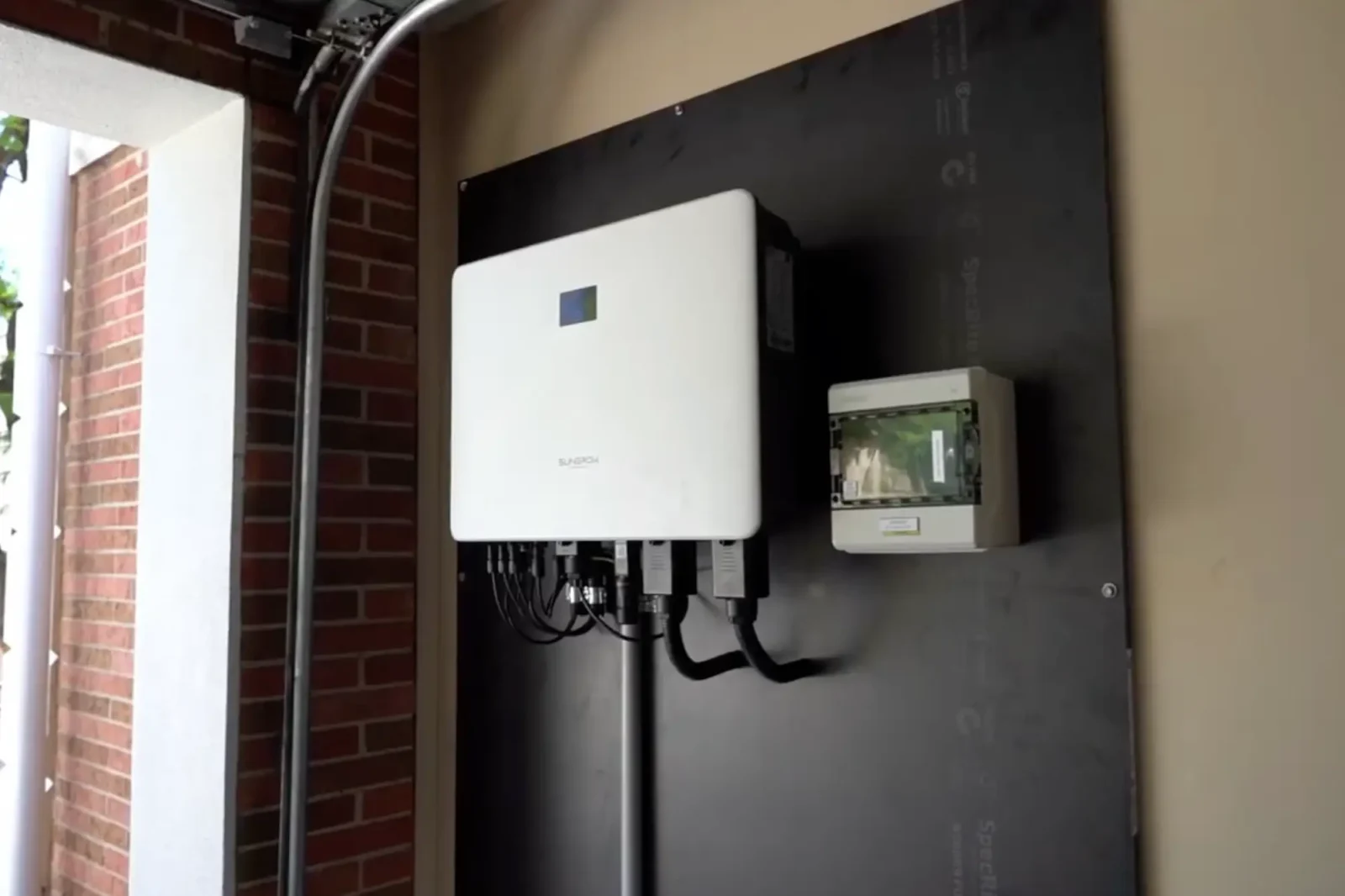
Your solar system works hard every day, converting sunlight into energy and helping you cut down on electricity costs. But when you need to reconnect your Sungrow inverter to Wi-Fi and the connection suddenly drops, it can leave you in the dark—literally. You open the monitoring app, expecting to see your system’s performance stats, only to find a dreaded “offline” message staring back at you.
It’s frustrating, but don’t worry. Whether you’ve recently changed internet providers or your connection has mysteriously dropped out, getting your Sungrow inverter reconnected to Wi-Fi is easier than you think. In fact, you can do it yourself in just a few minutes, without needing to call a technician.
Follow this simple step-by-step guide, and you’ll have your solar system back online in no time.
How to Reconnect Your Sungrow Inverter to Wi-Fi
Step 1: Check If Your Wi-Fi is in Range
Before diving into settings and passwords, make sure your Wi-Fi is actually reaching the inverter. Take your phone outside, stand near the inverter, and check if your home’s Wi-Fi appears in the list of available networks.
If your network isn’t showing up or the signal is weak, your inverter may be too far from the router. A Wi-Fi extender placed between your router and inverter can help strengthen the signal and prevent future dropouts.
Step 2: Access the Inverter’s Wi-Fi Settings
Now it’s time to log in and manually reconnect your inverter. Open the EY Solar Cloud app and select “Local Access.” This will generate a QR code—scan it with your phone to access the inverter’s settings.
If the QR code isn’t working, press the Wi-Fi dongle three times in quick succession. This should bring up an “Activate” option, allowing you to proceed.
Step 3: Log In to Your Inverter
Once you’re in, you’ll see a login screen. Enter the default credentials:
Username: admin
Password: pw888
After logging in, navigate to the “More” option in the bottom-right corner. Tap it, then select “WLAN Configuration” at the top of the menu.
Step 4: Connect to Your Wi-Fi Network
A list of available Wi-Fi networks will appear. Find your home Wi-Fi, select it, and enter your password. Double-check the details before confirming, as even a small typo can prevent a successful connection.
Give the system a few moments to process. Once the connection is established, go back to the app’s home screen and check if the inverter is now online.
Step 5: Verify That Everything is Working
Now that your inverter is reconnected, check that your solar system’s data is updating. Look for:
Live solar energy production readings.
Battery charging status (if applicable).
Updated home energy consumption data.
If everything looks good, your Sungrow inverter Wi-Fi setup is back on track!
Free 60-minute on-site assessment
A licensed electrician measures your roof and your bill. No phone quotes.
What to Do If Your Sungrow Inverter Still Won’t Connect
Remove and Reinsert the Wi-Fi Dongle
If your Sungrow inverter isn’t reconnecting, try removing the Wi-Fi dongle. A loose connection or dust build-up could be causing the issue. Once removed, blow away any dust, then securely reinsert the dongle. After that, go through the Wi-Fi reconnection process again.
Restart Your Wi-Fi Router
Sometimes, the issue isn’t with the inverter but with the internet connection itself. Restart your Wi-Fi router by turning it off for a minute and then powering it back on. Once your network is running again, try reconnecting your Sungrow inverter to Wi-Fi.
Check Your Router’s Frequency
Many Sungrow inverters only work with 2.4GHz Wi-Fi, not the faster 5GHz band. If your inverter isn’t detecting your network, check your router settings and make sure the 2.4GHz frequency is enabled. If necessary, switch your inverter’s connection to the correct band.
Use a Wi-Fi Extender
If your inverter is installed far from your router, the signal might not be strong enough. In this case, installing a Wi-Fi extender between your router and inverter can help strengthen the connection and prevent frequent dropouts.
If none of these solutions work, there could be a more complex issue, such as a faulty dongle or outdated firmware. In this case, reaching out to your solar installer is the best option for expert troubleshooting and support.
Stay Connected & Keep Your Solar System Running
Your solar system is an investment, and keeping it online ensures you’re getting the most out of it. By following these steps, you’ll know how to reconnect your Sungrow inverter to Wi-Fi quickly and easily—no tech expertise required.
If you’re still having trouble, or if you need expert solar solutions, Deionno Electrical & Solar is here to help. Whether it’s Sungrow inverter Wi-Fi setup, installation, or troubleshooting, our team has you covered.
Get in touch today and keep your solar system running at full power!
Frequently asked questions
Why does my Sungrow inverter keep disconnecting from Wi-Fi?
This usually happens due to weak Wi-Fi signals, router changes, or network interference. A Wi-Fi extender can help stabilise the connection.
How do I connect my Sungrow inverter to the internet after changing my router?
Follow the same steps to access WLAN Configuration, select your new network, enter the new password, and reconnect.
Can I reconnect my Sungrow inverter to Wi-Fi without the app?
Yes, you can access the inverter’s local Wi-Fi network via your phone’s settings and configure it manually through a browser.
What do I do if my Sungrow inverter won’t detect my Wi-Fi?
Check if your router is broadcasting on 2.4GHz (some inverters don’t support 5GHz). If it still doesn’t appear, move your router closer or use an extender.
 Written by
Joe Deionno
Started in 2017 after years of subcontracting and seeing the dodgy operators at work; set out to be the installer people could trust. Oversees every install in both states.
Related guides
More solar repairs guides from our electricians.
Swipe to see more

The Complete Guide To Zeversolar Inverter Error Codes
All 27 Zeversolar and Eversolar error codes in plain English: what each number means, how urgent it is, how to reset your inverter safely, and what to replace it with now the company has closed.
Read more
The Complete Guide To Omnik Inverter Error Codes
All 20 Omnik and Trannergy error codes in plain English: what each one means, how urgent it is, how to restart safely, and what your replacement options are now Omnik and its portal are gone.
Read more
The Complete Guide To Tesla Powerwall Error Codes
All 15 Tesla Powerwall alerts and error messages in plain English: what each one means, how urgent it is, how to restart safely through the Tesla app, and when it needs Tesla’s own service.
Read moreServices this guide relates to

Ready to start?
Book a free 60-minute on-site assessment with one of our licensed electricians.
Free 60-minute on-site solar and battery assessment. No obligation.

$0 power bill guarantee
Arrange your free 60 minute on-site Solar & Battery Assessment in 30 seconds!
Which state is your home in?
Do you own your home?
Unfortunately, we only work with homeowners
If you are considering solar for a new home, or on behalf of someone else, select "I own my home"
We only work with homeowners
A solar or battery system is a permanent change to the property, so it needs to be arranged by the person who owns the home.
If you tapped that by mistake, head back and we'll pick up where you left off.
What are you looking for?
Our team can talk you through all options if you're not sure.
What appeals to you most?
You'll get all of these. We'd just like to know what matters most.
How much is your quarterly electricity bill?
The average Adelaide home spends $500 - $1000 per quarter. Not sure of yours? Take your best guess, we'll go through the real numbers at your assessment.
Whatever it is today, our goal is $0. If we don't get you there, we'll pay your bill.
How soon are you looking to get a system installed?
We can work with you on a longer timeline, or get you saving as soon as possible.
What is your address?
We have hundreds of happy customers across South Australia. We need your address to check we service your area and to look at your roof before we visit.
Great news, we service your area!
Anything else to share?
Every system we design is tailored to the home, so the more info the better! (Optional)
How should we get in touch with you?
Last step. We'll call to arrange your free on-site assessment at a time that suits you. No pressure and no obligation.
Request sent, we'll be in touch!
Do you want to skip the queue?
Call to speak directly with a solar specialist during business hours, and we can get your free on-site assessment booked in straight away.
📞What happens next?
- 1We'll give you a call
If you haven't called already, we'll give you a call to say hello.
- 2Discuss your needs and goals
We'll chat about what you're looking for, how we can help, and book in a time for your on-site assessment that suits you.
- 3Your free on-site assessment
We visit your home for 45 to 60 minutes to measure up the roof, check the switchboard and review how you use power.
- 4We send your detailed quote
A tailored proposal with the system design, the savings and the pricing laid out in full.
- 5We design and install
If you're happy with the proposal, our in-house team installs it and shows you how it all works.
 4.9Google · 530+ reviews
 4.8SolarQuotes reviews